
YubiKey and Security Keys with Proton Pass: 2FA Setup Guide"
Yes, Proton Pass works with YubiKeys and other FIDO2 security keys. Here is how to add one, what Proton says about browsers and limits, and how to avoid locking yourself out.

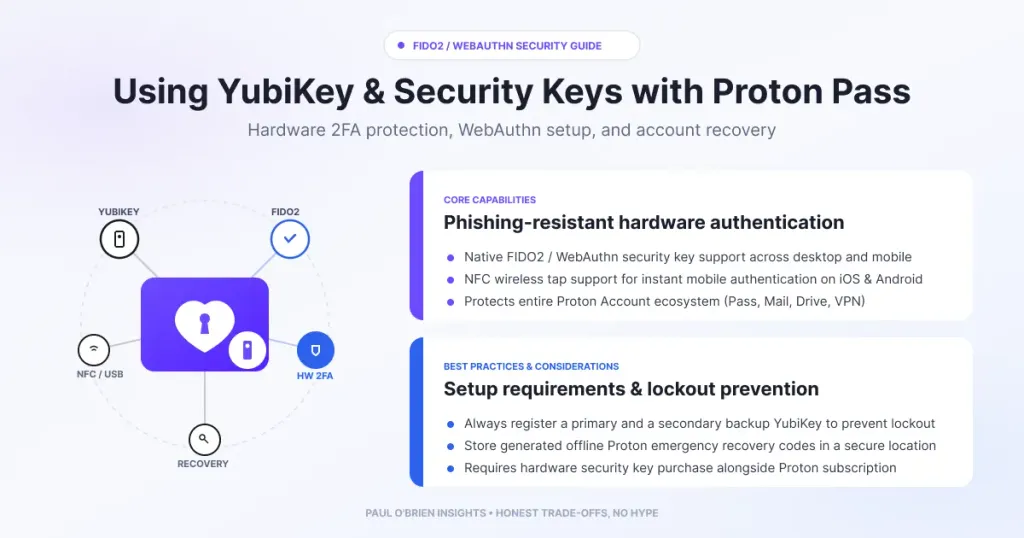
A security key is the strongest second factor you can put on a Proton account, and because Proton Pass signs in through that account, the same key protects your password vault. The set-up takes about five minutes. The risk is getting locked out, so the sensible plan is two keys plus a safe copy of your recovery codes.
This guide covers how security keys such as a YubiKey work with Proton Pass, how to add one, what Proton says about supported browsers and limits, and how to avoid losing access. I have checked the steps against Proton’s own support pages in October 2026.
Short answer: yes, Proton Pass works with YubiKeys and other FIDO2 or U2F security keys. You add the key to your Proton account under two-factor authentication, and from then on it is required when you sign in to Proton Pass and other Proton services. Register up to four keys, keep a spare somewhere safe, and store your recovery codes offline.
At a Glance: Who Needs a Security Key?
| User Profile | Best Fit? | Core Value Drivers / Key Trade-offs |
|---|---|---|
| Anyone who keeps all their passwords in Proton Pass | Ideal | One stolen master password no longer unlocks your account, because the attacker also needs the physical key. |
| Frequent target of phishing (admins, finance, journalists) | Ideal | A key only signs in on the real site, so a convincing fake page gets nothing useful. |
| Someone who travels or shares devices | Strong fit | NFC or USB-C keys work across laptops and phones, but you must carry one and keep a spare. |
| Someone happy with an authenticator app | Workable | App codes are far better than SMS, though they can still be phished in real time. |
| Anyone who loses things often or has no backup plan | Alternative needed | A single key with no spare or recovery codes is a lockout risk. |
Why a Security Key Beats Other Second Factors
A password manager is a single point of failure by design, so the second factor on it matters. Here is how the common options compare:
| Method | Phishing resistance | Weakness |
|---|---|---|
| SMS codes | Poor | Can be intercepted or redirected through SIM swapping |
| Authenticator app (TOTP) | Moderate | A fake site can capture the code and use it straight away |
| Push approval | Moderate | Prompt fatigue: people tap “approve” to make it stop |
| Security key (FIDO2 or U2F) | Strong | You must hold the key, and losing it without a spare causes lockouts |
A FIDO2 key does not produce a code you type. It performs a cryptographic check tied to the site’s real domain, so it simply will not respond on a look-alike page. That property is what makes it the best choice for a vault that holds everything else.
What Proton Supports
| Question | Answer, per Proton’s support pages |
|---|---|
| Which keys work? | Physical U2F or FIDO2 security keys, including YubiKeys |
| How many can I register? | Up to four per account. Proton recommends more than one to reduce lockout risk |
| Does it cover Proton Pass? | Yes. 2FA applies across Proton services and apps, on free and paid plans, and Proton Pass can use a security key at sign-in |
| Can I use Windows Hello, Touch ID or Face ID? | Yes, by ticking “Allow platform keys” when you add one. Leave it unticked to register a physical key |
| Do I need an authenticator app too? | Not required, but an app on the same account gives you a fallback at sign-in. Without one you rely on recovery codes |
| Known problems | Tor Browser does not support security keys, Safari can show a “use a different browser” error because of a known bug, and protonvpn.com does not support security-key 2FA (use proton.me) |
Know the limits: a security key is a second factor at sign-in. Proton’s documentation describes it that way, and I found nothing saying it unlocks the vault on its own or replaces your password. Treat it as an addition to your master password, not a replacement.
How to Add a Security Key to Proton
- Sign in at account.proton.me and open Settings, then All settings, then Account and password.
- Under Two-factor authentication, switch on the Security Key toggle. Re-enter your password if asked.
- Insert the key (or hold it to your phone for NFC) and select Continue.
- When the browser prompts you, touch or tap the key.
- Give the key a name you will recognise, such as “Blue YubiKey, desk drawer”, and select Continue.
- Repeat for your second key before you do anything else.
If you already use another 2FA method, Proton asks you to verify with it first. Sign-in from any Proton app then prompts for the key as well as your password.
Using a key with Proton Pass on your phone
Proton’s mobile guide says a security key can replace the one-time code when you log in to Proton Pass, over USB or NFC. If a key is already registered, Pass recognises it and asks you to authenticate with it. If it does not, choose Use a different device, pick the type of key and activate it. Proton’s page also lists an authenticator app as a prerequisite, so set one up alongside the key.
Choosing a Key
| Option | Connectors | Best for |
|---|---|---|
| Yubico Security Key series | USB-A with NFC, or USB-C with NFC | The simplest, cheapest route to FIDO2 and U2F |
| YubiKey 5 series | USB-A, USB-C, Lightning and NFC variants | People who also want extra protocols for other services |
| YubiKey Bio series | USB-A and USB-C | Fingerprint-verified use |
Match the connector to your devices: USB-C for most modern laptops and phones, and NFC for tap-to-sign-in on mobile. Buy two of the same kind, and buy them from Yubico or an authorised reseller. Check current prices there, as they change.
Avoiding a Lockout
- Register at least two keys. Keep one on your keyring and the other somewhere separate and safe.
- Download and print your recovery codes and store them offline. They are one-time codes that Proton gives you when you set up 2FA.
- Keep an authenticator app as a fallback if you are comfortable with that trade-off. It is weaker than a key, but it keeps you from being locked out.
- Test the second key by signing out and back in with it before you rely on it.
- Review your account recovery options in the same settings area.
Frequently Asked Questions
Does Proton Pass support YubiKey?
Yes. Proton accepts U2F and FIDO2 keys, including YubiKeys, as a second factor on your Proton account, and that covers sign-in to Proton Pass.
How many security keys can I add to Proton?
Up to four. Proton recommends registering more than one.
What happens if I lose my security key?
If you have a second key or an authenticator app on the account, use that to sign in and remove the lost key. Otherwise you need one of your recovery codes or Proton’s account recovery process. This is why I suggest two keys and offline recovery codes.
Can I use Face ID or Windows Hello instead of a physical key?
Yes, as a platform key, if you tick “Allow platform keys” during set-up. A physical key is more portable.
Does it work in every browser?
Not quite. Tor Browser does not support security keys, and Safari can show an error because of a known bug. Force-quitting and reopening Safari may fix it, otherwise use another browser.
Does a security key protect my Proton Mail too?
Yes. It is attached to the Proton account, so it protects every Proton service you sign in to, not just Proton Pass. For what Proton does and does not protect, see my Proton Mail privacy and security guide.
The Bottom Line
If your passwords live in Proton Pass, a hardware security key is the best upgrade you can make to the account guarding them. Buy two, register both, store your recovery codes offline and test everything before you rely on it. If you do not yet use Proton, see my Proton Mail review first, or try Proton.
Disclosure: This article contains an affiliate link for Proton. If you sign up through it, I may earn a commission at no extra cost to you. I have no affiliate arrangement with Yubico. I only recommend services I personally use and trust.

